How to move files from Google Drive to OneDrive (2026)
The real ways to transfer files from Google Drive to Microsoft OneDrive in 2026 — download-and-reupload, Google Takeout, and copying cloud-to-cloud — plus the Google Docs and filename gotchas to handle first.
Consolidating on Microsoft 365 usually means getting everything out of Google Drive and into OneDrive. As with any cross-provider move, there's no built-in button between the two — here are the methods that actually work in 2026, and the gotchas specific to leaving Google.
First: deal with Google Docs, Sheets, and Slides
This is the part people miss. Google Docs, Sheets, and Slides aren't real files — they live inside Google and have no size on disk. They can't be copied byte-for-byte to OneDrive. Before (or during) your move, export them to Office formats: Docs → .docx, Sheets → .xlsx, Slides → .pptx (or PDF). Regular files — photos, PDFs, videos, anything you uploaded — copy across as-is.
1. Download from Drive, upload to OneDrive
Select files in Google Drive, download (Drive zips folders), unzip, then upload to OneDrive in the browser or via the OneDrive app. Fine for a small amount; painful for a large library — the download can fail partway, needs disk space for the zip, and the re-upload ties up your machine.
2. Google Takeout
Google Takeout exports your Google data as a set of (often huge) zip files, and it can convert Docs/Sheets/Slides to Office or PDF on the way out — handy. But you still have to download all of it and then upload it to OneDrive yourself, and very large Takeout archives are split into many files that are awkward to reassemble. It solves the export, not the transfer.
3. Copy directly cloud-to-cloud (no download)
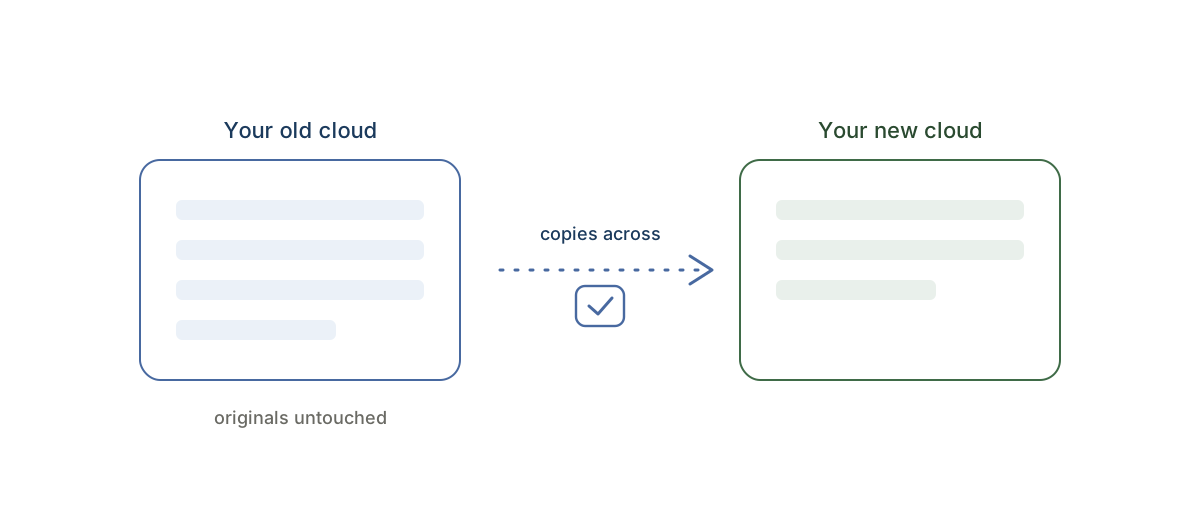
The method that scales: a hosted service connects to both accounts and streams your files straight from Google Drive to OneDrive on its servers — nothing downloads to your computer. CloudRaft does this copy-only, so your Google Drive originals are never touched, and you can transfer Google Drive to OneDrive free up to 2 GB to try it.
OneDrive rejects certain characters in file names (\ / : * ? " < > |). If a Google Drive file uses one, rename it before copying or it'll be set aside. A good cloud-to-cloud tool flags these up front instead of failing silently.
Which should you pick?
- A few files: download and re-upload — no setup needed.
- A whole Drive, or lots of Docs to convert: Takeout to export with conversion, or copy cloud-to-cloud to skip the download entirely.
- Leaving Google for good: copy everything into OneDrive, verify it all arrived, then close the Google account — never delete first.