How to move your files into Nextcloud or Synology from Google Drive, Dropbox, or OneDrive
Bringing your files home to Nextcloud or a Synology NAS? Here's how to copy everything from Google Drive, Dropbox, or OneDrive directly over WebDAV — no downloading, originals untouched, price shown before anything starts.
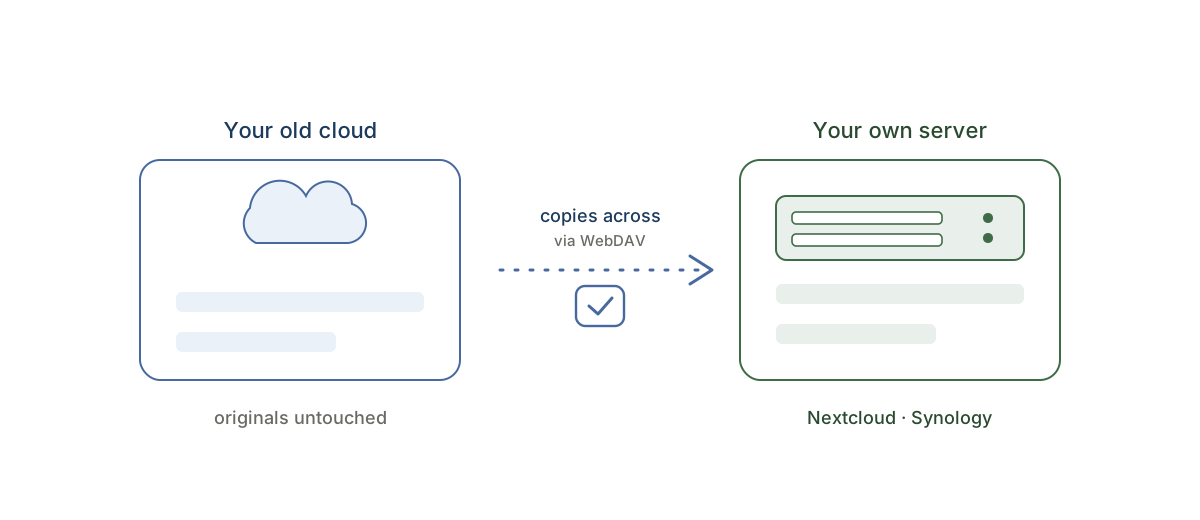
You've set up Nextcloud, or your Synology NAS is humming on the shelf — and now comes the part nobody warns you about: years of files are still sitting in Google Drive, Dropbox, or OneDrive, and they need to get here.
The obvious plan is to download everything to a laptop and re-upload it to your own server. For a few gigabytes, fine. For a real archive — hundreds of gigabytes of photos, documents, and old projects — it means days of a laptop that can't sleep, a hard drive that needs the free space, an upload crawling over home broadband, and no clean way to verify nothing got lost in the middle.
There's a more direct route: copy the files cloud-to-server, so they travel straight from your old cloud into Nextcloud or your NAS without ever passing through your machine.
The key that makes this work: WebDAV
Nextcloud, Synology Drive, and most self-hosted storage speak WebDAV — a standard protocol that lets outside services read and write files over HTTPS. That's the door your files come in through.
With CloudRaft, the setup looks like this: connect your source cloud (Google Drive, Dropbox, OneDrive, or Box) with a normal sign-in, then connect your Nextcloud or Synology as the destination via its WebDAV address. CloudRaft's servers then stream your files from the source directly into your server — encrypted in transit, never stored along the way, and without your laptop or home connection doing any of the lifting.
Finding your WebDAV address takes a minute:
- Nextcloud: in the Files app, click Settings (gear, bottom-left) — the WebDAV URL is shown there, usually
https://your-domain/remote.php/dav/files/USERNAME/. Use an app password rather than your account password (Settings → Security → Create new app password). - Synology: enable the WebDAV Server package in Package Center, then use
https://your-nas-address:5006with your normal DSM login.
Your server does need to be reachable over HTTPS from the internet for the transfer — a normal domain, a DDNS address, or a temporarily opened port all work. Plain HTTP is refused outright, and so are private LAN addresses, so if your NAS is strictly LAN-only that's the one thing to sort out first.
Three checks before you trust any migration with your archive
Whatever route you take into your own server, insist on these three properties. They're the difference between a calm migration and a risky one.
- Copy-only, so your originals can't be harmed. CloudRaft only ever reads from the source and writes copies to the destination — it never deletes, moves, renames, or modifies anything in your old cloud, and that's enforced in code, not policy. If anything goes sideways (your NAS drops offline mid-transfer, say), the worst case is an incomplete copy you simply run again. Your old cloud stays fully intact until you've verified everything landed and choose to clean it up yourself.
- See the full plan and price before anything starts. After you pick folders, CloudRaft counts the files, totals the size, and shows a one-time price — nothing copies until you confirm. One migration, one price, no subscription for a thing you'll do once. You can check the size and price before signing up at all.
- Test free before committing. Copy up to 2 GB free — no card, no expiry. Point it at a real folder, watch it arrive in Nextcloud or on your NAS, open a few files, and confirm the originals are untouched. Then move the rest with evidence instead of hope.
What doesn't come across (the honest part)
A copy carries your files, not your old cloud's ecosystem — worth knowing up front:
- Sharing permissions and links stay behind. You'll re-share from Nextcloud or Synology Drive, which have their own sharing systems.
- Version history stays in the source. Current versions copy across; old revisions remain in the old cloud (which stays intact anyway). Nextcloud and Synology start building their own version history from day one.
- Google Docs, Sheets and Slides aren't copied at all. They aren't ordinary files — they only exist inside Google — so CloudRaft sets them aside rather than pretending to move them, and lists every one it skipped so nothing disappears silently. If you want them on your server, export them from Google Drive first (File → Download → .docx or .xlsx) and copy the exported files across.
The sensible order of operations
- Get your WebDAV address and confirm your server is reachable over HTTPS.
- Run the free 2 GB test with a real folder and verify it on your own server.
- Copy the full archive; CloudRaft's servers do the work while your laptop sleeps.
- Spot-check the results, re-create your important shares, and only then — on your own schedule — clean up the old cloud.
Moving to your own server is the moment you take real ownership of your data. The move itself shouldn't be the risky part. Ready to pick a route? Google Drive to Nextcloud, Dropbox to Nextcloud, and OneDrive to Nextcloud each have their own page — and the same WebDAV setup covers Synology.