How to move files from OneDrive to Google Drive (2026): every method, compared
The four real ways to transfer files from OneDrive to Google Drive in 2026 — download-and-reupload, the OneDrive app, Google Takeout's limits, and copying cloud-to-cloud — with the trade-offs of each.
Moving from Microsoft's cloud to Google's is one of the most common cloud switches there is — people leave OneDrive when they change jobs, drop a Microsoft 365 subscription, or just consolidate on Google. The catch: OneDrive and Google Drive don't talk to each other, so there's no built-in "send to Google Drive" button. Here are the four real methods in 2026, and the honest trade-offs of each.
1. Download from OneDrive, then upload to Google Drive
The obvious one: select your files in OneDrive, download them (OneDrive zips a folder into a .zip), unzip on your computer, then drag everything into Google Drive in the browser.
- Works for everyone, no extra tools — fine for a handful of files.
- Painful at scale: a large download can fail halfway, the .zip has to fit on your disk, and the re-upload ties up your laptop and bandwidth for hours or days.
- OneDrive's web download caps very large selections, so big libraries often won't come down in one go.
2. The OneDrive mobile app (small, personal moves only)
Microsoft's own suggestion for personal accounts is to use the OneDrive mobile app to save files to your phone, then the Google Drive app to upload them. It avoids a desktop, but it's slow, manual, and impractical for anything beyond a few photos or documents.
3. Google Takeout / Microsoft's export tools
Google Takeout exports Google data out — it won't pull from OneDrive, so it's the wrong direction here. On the Microsoft side, the legacy Mover tool that used to handle cloud-to-cloud migration was retired by Microsoft and no longer migrates from Google Drive, Dropbox, or Box. So the native export tools don't cover this move.
4. Copy directly cloud-to-cloud (no download)
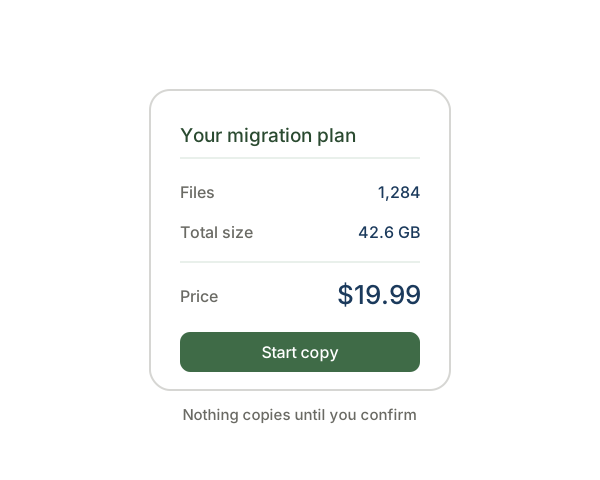
The method that scales: a hosted service connects to both clouds and streams your files straight from OneDrive to Google Drive on its own servers — nothing downloads to your computer. You grant read access to OneDrive and write access to Google Drive, pick what to move, and close the tab; it runs in the background.
This is what CloudRaft does, and it's copy-only: it reads your OneDrive to make copies and can never delete, move, or change your originals. You can transfer OneDrive to Google Drive free up to 2 GB to try it, no card.
Whichever method you use, remember Google Docs/Sheets and OneDrive's Office files aren't always byte-for-byte portable. Regular files (photos, PDFs, videos, Office documents) copy cleanly; cloud-native documents may need exporting first.
Which should you pick?
- A few files: just download and re-upload — it's not worth setting anything up.
- A whole library, or you don't want your laptop tied up: copy cloud-to-cloud, so it runs server-side and verifies every file landed.
- You're leaving Microsoft 365 entirely: copy everything across first, confirm it's all in Google Drive, then cancel — never delete the source until you've verified the destination.