How long does a cloud-to-cloud migration take? (And what actually decides it)
Moving files between clouds? Here's what actually determines migration time — total size, file count, and cloud speed limits — plus realistic estimates and how to avoid the slowest mistake: downloading everything first.
You've decided to move your files from one cloud to another — maybe Google Drive to Dropbox, maybe OneDrive to a Nextcloud you control. The first practical question is almost always the same: how long is this going to take?
The honest answer: anywhere from a few minutes to a couple of days — and the biggest factor is how you do it, not how much you have. Here's what actually decides the timeline, with realistic numbers.
The slowest way: download everything, then re-upload it
If you move files by downloading them to your computer and uploading them to the new cloud, every file travels twice over your home connection — and your upload speed (usually the slower half of your internet plan) becomes the bottleneck.
On a typical connection with 20 Mbps upload, 100 GB takes about 11 hours of uploading alone, after the download finishes. Your laptop has to stay on and connected the whole time, and if anything drops mid-way, you're left guessing which folders made it. For anything beyond a handful of files, this is the method to avoid.
The fast way: copy directly between the clouds
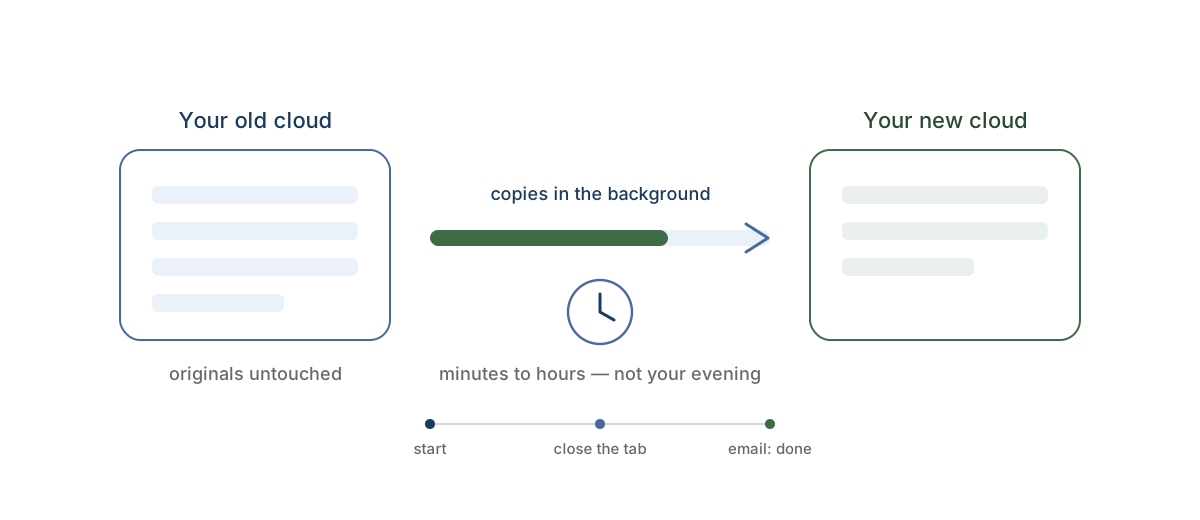
A cloud-to-cloud copy skips your computer entirely. CloudRaft copies files straight from the source cloud to the destination on its own servers — your internet speed stops mattering, and you don't have to keep anything running. You pick the folders, confirm, close the tab, and get an email when it's done.
With that approach, the timeline depends on three things:
- Total size. The obvious one. As a rule of thumb for server-to-server copies: a few GB finishes in minutes, 50–100 GB typically completes within a few hours, and multi-hundred-GB migrations run comfortably in the background over several hours to a day.
- File count, not just size. This is the factor that surprises people. Ten thousand small photos take longer than a single 10 GB video of the same total size, because each file is a separate operation on both clouds. If your data is lots of small files, expect the higher end of any estimate.
- The clouds' own speed limits. Every provider limits how fast data can be read out and written in, and those limits — not the migration tool — set the ceiling. This is also why a serious tool resumes automatically instead of failing when a cloud briefly throttles: interruptions are normal, re-copying everything shouldn't be.
The practical takeaway: with a direct copy, "how long" becomes a background question rather than a blocked-evening question. You're not babysitting a progress bar either way.
Want a rough figure for your own move before you start? Try the migration time & cost estimator.
Three things to check before you start (more important than speed)
A migration you have to redo is the slowest migration of all. Before trusting any tool with your files, check:
1. It should be copy-only, so your originals can't be harmed. CloudRaft only ever reads from the source and writes copies to the destination. It never deletes, moves, renames, or modifies anything in your old cloud — enforced in code, not just policy. Worst case in any failure is that you run it again; your files exist in both places until you decide to clean up.
2. You should see the plan and price before anything starts. After you select folders, CloudRaft counts the files, totals the size, and shows the exact one-time price up front. Nothing copies until you confirm — so you also get a real sense of the job's scale before it begins.
3. You should be able to test it free first. Copy up to 2 GB free — no card, no expiry. Time a real folder of your own files, check the copy in the new cloud, confirm the originals are untouched, and extrapolate from there. That's a far better estimate than any calculator.
What doesn't transfer (the honest part)
Speed aside, know what a copy can't carry between clouds:
- Sharing permissions. Your files copy; share links and invited collaborators don't. You'll re-share from the new cloud.
- Version history. The current version of every file copies across; old revisions stay behind in the source cloud.
- Provider-specific items (like proprietary note formats) may be skipped — CloudRaft tells you exactly what was skipped, so nothing disappears silently.
Your source cloud stays exactly as it was throughout. Files stream directly between the clouds through EU-hosted servers and are never stored along the way. More on how we keep your data safe.
Get a real answer in about ten minutes
Estimates are fine; a measurement is better. Copy up to 2 GB free — no card, no expiry. Move one real folder, see how long it takes, and decide from there. Popular routes: OneDrive to Google Drive, Box to Dropbox, or browse every supported pair.