How to move your files from OneDrive to Dropbox — without downloading them first
Switching from OneDrive to Dropbox? Here's how to copy everything across directly, server to server — no downloading, no re-uploading, and your OneDrive originals are never touched.
Maybe your Microsoft 365 subscription is ending and you don't want to keep paying just for storage. Maybe your team standardized on Dropbox. Maybe a work or school OneDrive is closing and you need your files out before the account does. Whatever brought you here, you've hit the same wall everyone hits: there's no "send to Dropbox" button inside OneDrive.
So most people do the only thing that seems possible — download everything from OneDrive to their laptop, then upload it all to Dropbox. For a few documents, that works. For a real account, it's a slog: every file travels twice over your home internet, your computer is tied up for hours or days, and if the connection drops halfway through you're left guessing which folders actually made it across.
There's a better way, and most people don't know it exists.
Copy directly between the two clouds — skip your computer entirely
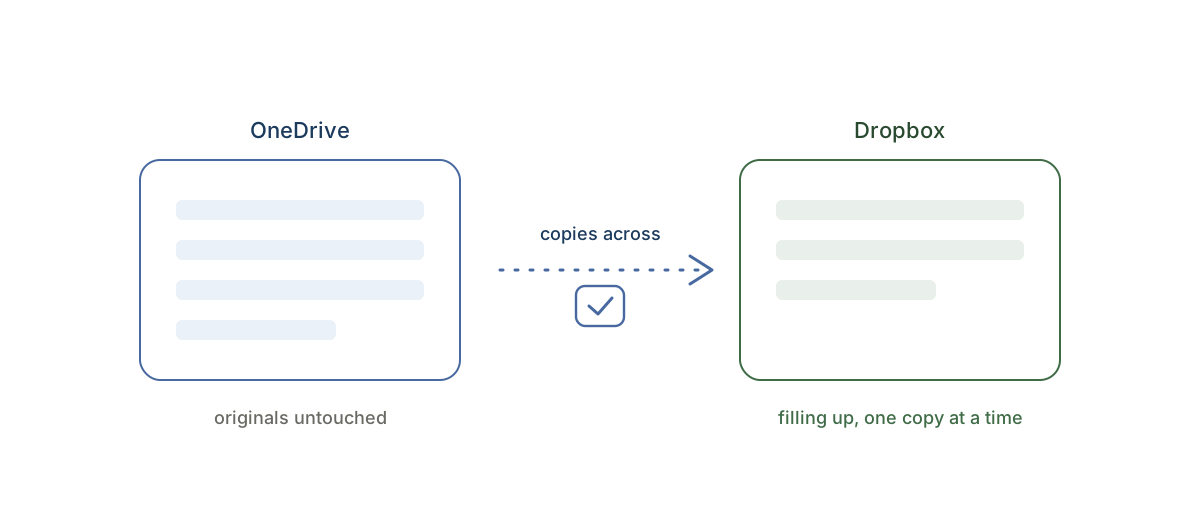
Your files don't have to pass through your laptop at all. CloudRaft copies them straight from OneDrive to Dropbox on its own servers. You pick the folders, confirm, and close the tab — the copy runs in the background and you get an email when it's done.
Three things to check before you trust any tool with a move like this — here's how CloudRaft handles each:
1. It should be copy-only, so your originals can't be harmed. CloudRaft only ever reads from OneDrive and writes copies to Dropbox. It never deletes, moves, renames, or modifies anything in your OneDrive — that's enforced in code, not just policy. Worst case in any failure is that you run it again. When the copy finishes, your files exist in both places, and you decide if and when to clean up the OneDrive side.
2. You should see the full plan and price before anything starts. After you select your folders, CloudRaft counts the files, totals the size, and shows you exactly what the transfer will cost — a one-time price, not a subscription. Nothing copies until you confirm. A migration is a one-time event, so you pay for it once.
3. You should be able to test it free first. CloudRaft lets you copy up to 2 GB free — no card required, no expiry. Move one real folder, open it in Dropbox, check your OneDrive is untouched, and only then decide whether to move the rest.
How to do it
- Connect both clouds. Start free, connect OneDrive as the source and Dropbox as the destination. Microsoft has no folder-only permission, so OneDrive's consent screen grants read access to your files; we only ever copy the folders you pick.
- Choose what to copy and review the plan. Select your folders. You'll see the file count, total size, and exact price up front. Nothing starts until you confirm.
- Confirm and walk away. The copy runs on CloudRaft's servers — close the tab, shut your laptop. If the transfer is interrupted, it resumes where it stopped and never re-copies what's already done. You get an email when it's finished.
How long does it take?
It depends on total size and how fast OneDrive and Dropbox let data be read and written — not on your laptop or your internet connection. A few gigabytes typically finish in minutes; hundreds of gigabytes run in the background over hours. Either way, you're not babysitting a progress bar. Want a rough figure for your move? Try the migration time & cost estimator.
What doesn't transfer (the honest part)
A couple of things can't be copied cleanly between OneDrive and Dropbox, so it's worth knowing up front:
- Sharing permissions. CloudRaft copies your files, not OneDrive's share settings. Links you've shared and people you've invited don't carry over — you'll re-share from the Dropbox side.
- Version history. Each cloud keeps its own version history internally. The current version of every file copies across; old revisions stay behind in OneDrive.
- OneNote notebooks aren't regular files, so they can't be copied as-is. CloudRaft skips them and tells you exactly what it skipped, so nothing disappears silently. Everything that's an actual file — Office documents, PDFs, photos, video — copies normally.
Where your data goes (and doesn't)
Files stream directly between the two clouds through EU-hosted servers and are never stored along the way. CloudRaft holds your data in transit only — once the copy completes, nothing of yours remains on its systems. More on how we keep your data safe.
Try it with your own files, free
The easiest way to trust a migration tool is to watch it work. Copy up to 2 GB free — no card, no expiry, on the OneDrive to Dropbox route page. Heading to Google instead? Transfer OneDrive to Google Drive.